Work in Studio
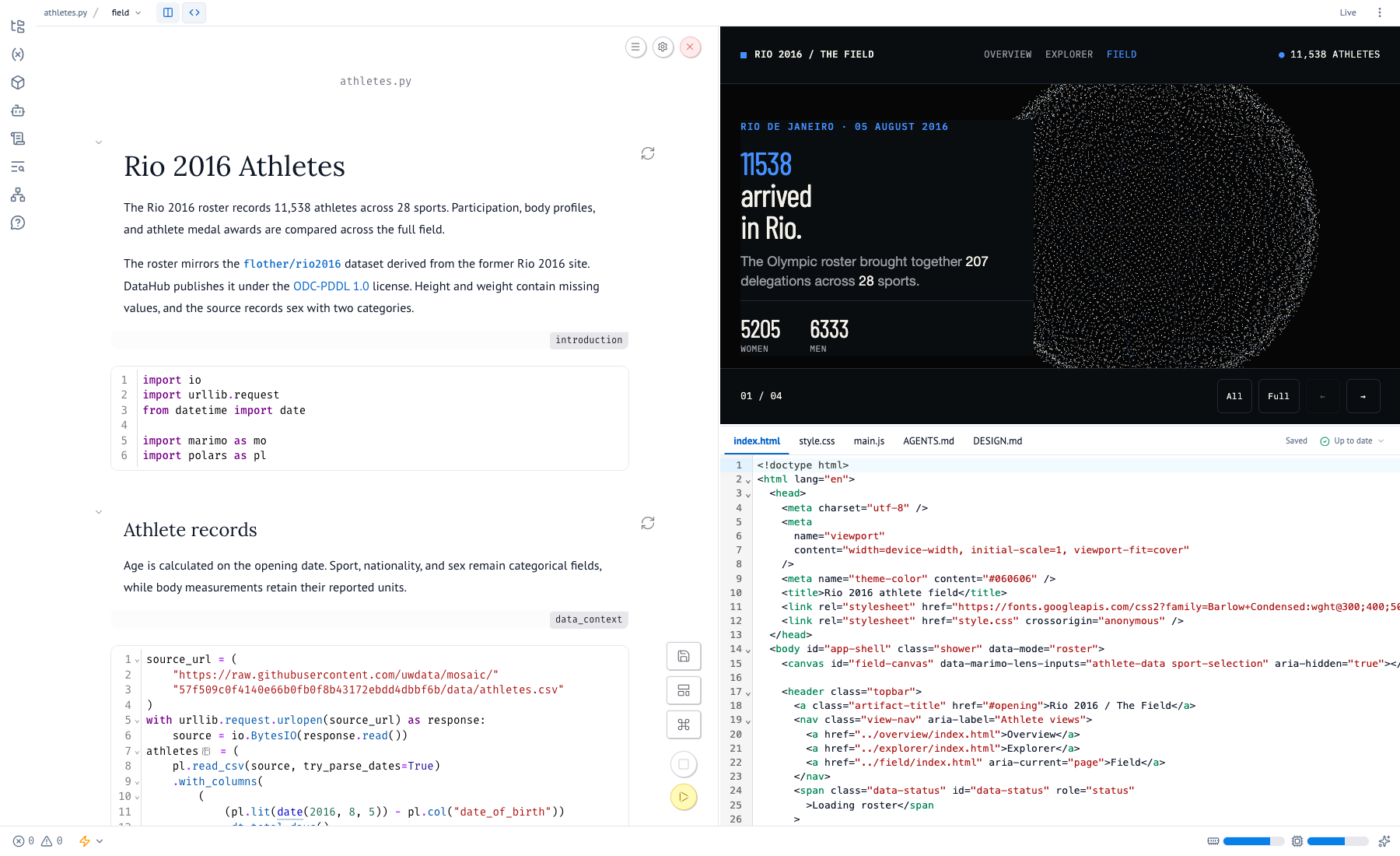
When marimo-studio is installed in the notebook's environment, marimo edit gives you a Studio toolbar and a view workspace with three panes: Notebook for Python, Source for the view's files, and Preview for the built view running against the live notebook.
Use the toolbar
- Show notebook only hides the view. Show view beside notebook restores the split with its previous sizes.
- Edit view source opens Source beneath Preview, with a tab for each file the view's provider exposes.
- The status item, such as Live, summarizes the runtime. Click it for diagnostics and the runtime choice.
- Workspace options opens Preview in a new tab and arranges panes. Choose Arrange panes to move, swap, or close them. Studio remembers the layout for each notebook and view in this browser.
On a narrow screen, use Visible surface to switch between Notebook, Source, and Preview.
Save and build
Saving a file in Source rebuilds the view. The build status reads:
| Status | Meaning |
|---|---|
| Building | A new build is in progress |
| Up to date | Preview matches the saved source |
| Build needed | Saved source changed since the last build |
| Build failed | The latest build failed, and its error is shown |
Preview keeps showing the last successful build while a new one runs or after one fails. Notebook changes need no rebuild: when a cell reruns, the results it feeds update in Preview right away.
Studio watches the view project, so edits from another editor or a coding agent rebuild the view too. Build explicitly from a terminal when a watcher may have missed a change:
uvx marimo-studio view build dashboard --target analysis.pyEdit view source in any editor
A view project is an ordinary folder of source files, such as studio/analysis/dashboard/. Open it in your own editor, run the format's own tools in it, or let a coding agent change it. Studio watches the folder, checks the files on disk at every inspection and build, and rebuilds Preview when a build input changes. marimo-studio view inspect dashboard --target analysis.py --json reports the folder's path.
Source writes each save against the version it loaded. When another editor or agent saved the same file first, Source keeps your edits and offers two choices:
- Use saved version loads the other save.
- Overwrite saved version with my edits replaces it.
Compare Your edits with Saved version before you choose. A view switch waits until the conflict is resolved.
For a change that spans several files, marimo-studio view hold keeps the current build published until you release it. See view hold.
Choose a runtime
Click the status item to choose where notebook code runs:
- Python runtime (
server) uses the editor's Python session, with access to local files, databases, packages, and credentials. - Browser runtime (
wasm) runs the notebook in a browser worker through Pyodide. The browser receives the notebook source and must reach its packages and data.
Switching runtimes keeps the built view and changes which notebook supplies its results. Run or export a view covers runtimes for visitors.
Manage views
Each notebook has one or more views. The view menu in the toolbar lists them. A notebook without a view shows Add view in its place.
| Task | In Studio | From a terminal |
|---|---|---|
| Create a view | New view, then choose a starter | marimo-studio view create report --target analysis.py |
| Switch views | Pick one in the view menu | |
| Set the default view | Default view when you create it | marimo-studio view default report --target analysis.py |
| Rename a view | marimo-studio view rename report summary --target analysis.py | |
| Remove a view | The remove action beside its name | marimo-studio view remove report --target analysis.py |
The New view dialog lists the installed starters by package, each with its technology's mark and what it makes. The selected starter shows a preview of the view it creates, its website, the files it writes, and what it needs when its provider is unavailable. Settings set the view's title, whether it becomes the default view, and the options the starter offers, such as the paper size of a Typst report. The info button beside each setting explains it. marimo-studio view create takes the same choices as --title, --setting KEY=VALUE, and --make-default.
The default view opens at / in marimo run, and a view named report opens at /report/. Studio records the default in the notebook's configuration:
[tool.marimo-studio]
default = "report"
Switching views keeps the Python session, so controls keep their values. In the Browser runtime, each view runs its own notebook instance. Studio saves pending Source edits before it switches. Renaming a view keeps its source and build history and changes its URL, so update any view that links to the old one. Removing a view deletes its folder. If it was the default, Studio names the view that replaces it before you confirm. A notebook keeps at least one view.
A running Studio server holds the views it serves. view rename and view remove in another terminal then report view-in-use with the server's process ID. Remove the view from the view menu, rename it in code mode with View.rename(), or stop the server and run the command again.
Files in a view project
A view project holds the view's own files plus three that Studio and agents read:
| File | Purpose |
|---|---|
view.toml | Names the provider that builds the view, and its options |
AGENTS.md | Conventions for coding agents, written by the starter |
DESIGN.md | Audience, visual direction, and approved libraries, written when needed |
schema = 1
provider = "marimo-studio/vanilla"
The provider decides which files appear in Source and which files affect the build. A React view, for example, shows src/App.tsx for editing, rebuilds when anything in src/ or public/ changes, and shows its lockfile read-only. Ask the provider directly with:
uvx marimo-studio view inspect dashboard --target analysis.pyRead and write view.toml with marimo-studio view read and marimo-studio view write. Both work even when the provider fails, so you can repair a provider option. They keep the view's provider key, so fix a misspelled key in your own editor.